
How to free up photo storage on iPhone without losing what matters
If you already deleted photos and the phone still says storage is full, start in Recently Deleted. Those items keep using space for about 30 days. After that, free space by type — long videos, screenshots, bursts — instead of wiping the camera roll. KeepFirst can walk those types keep-first, but it will not reclaim storage until iOS deletion is confirmed and Recently Deleted is emptied.
Why deleting photos does not free space yet
iOS moves a deleted photo to Recently Deleted. It is still on the phone. Settings → General → iPhone Storage still counts it. That is why “I deleted hundreds of photos and nothing changed” is usually not a bug.
| What you did | What iOS did | When space comes back |
|---|---|---|
| Deleted in Photos or KeepFirst | Item goes to Recently Deleted. | Not yet. Storage is unchanged. |
| Emptied Recently Deleted | Item is removed from the device. | Usually minutes. The storage bar can lag. |
| Waited 30 days | iOS empties Recently Deleted for you. | Automatic, if you never needed the space today. |
| Turned on Optimize iPhone Storage | Smaller local files; originals stay in iCloud. | This iPhone may look emptier. iCloud does not. |
Free up space, step by step
- 1
See what Photos is actually using
Open Settings, then General, then iPhone Storage, and tap Photos. If that number is already huge, start with videos and Recently Deleted — not random stills.
- 2
Empty Recently Deleted if you already deleted
A normal delete does not free space yet. Photos → Collections → Utilities → Recently Deleted (or Albums → Utilities on older iOS). Unlock the album, then Delete All only after you have checked it.
- 3
Clear the easy types next
Long videos, screen recordings, and screenshots are the fastest wins. Review those collections before you touch family photos.
- 4
Review bursts and similar shots
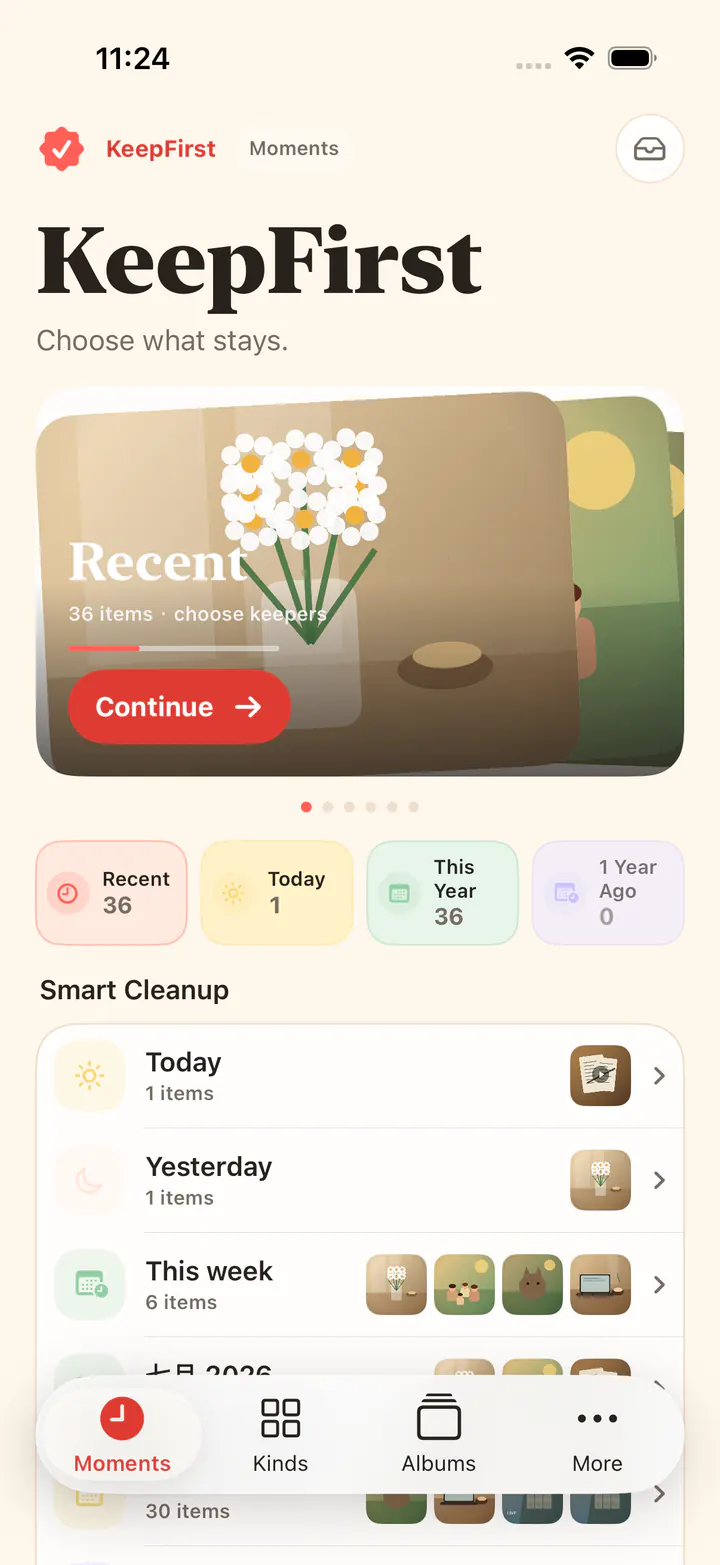
In KeepFirst, work by kind or similar-photo group, choose keepers, and send the rest to the Review Bin instead of deleting in a panic.
- 5
Confirm deletion, then empty Recently Deleted again
iOS still asks you to confirm. After that, extras sit in Recently Deleted for about 30 days and still count toward storage until you remove them there.
If iPhone storage is full and you cannot delete more
First empty Recently Deleted. Then look at Settings → General → iPhone Storage again. If Photos dropped and the phone is still full, the leftover is often System Data, Messages, or app caches — not more stills you forgot. Restart once so iOS can recount. Do not offload Photos; that is not how you shrink the library.
If iCloud Photos is on, a delete on this iPhone deletes the photo everywhere that library is signed in. Review first. KeepFirst’s Review Bin is the in-app pause before that iOS confirmation.
Frequently asked questions
- Why is my iPhone storage still full after deleting photos?
- Deleted photos move to Recently Deleted and still use storage for about 30 days. Empty that album to reclaim the space. If the bar is still full, check System Data, Messages attachments, and whether iCloud Photos is only optimizing local copies.
- I deleted photos but iPhone storage is still full. What now?
- Open Recently Deleted and permanently remove what you already reviewed. Restart the phone if Settings still shows the old Photos size — the storage bar can lag a few minutes after a large delete.
- Does Optimize iPhone Storage free iCloud space?
- No. Optimize iPhone Storage keeps smaller versions on the device and leaves the originals in iCloud. It can help this iPhone feel less full. It does not shrink your iCloud library.
- What takes up the most photo storage on iPhone?
- Videos first, then Live Photos, bursts, and near-duplicates. Screenshots are small one by one and large as a pile. Still photos you care about are rarely the cheapest place to start.
- Does KeepFirst back up my photos before deleting?
- No. KeepFirst does not upload or back up your library. Keep your own backup — iCloud Photos or a computer — before you empty Recently Deleted.
Make room without the regret
Empty Recently Deleted, then review videos and screenshots. Keep what matters. Clear the rest with a Review Bin before iOS takes them.