
How to delete screenshots on iPhone without losing the useful ones
To delete screenshots on iPhone, open Photos, tap the Sort and Filter button, and choose Media Types, then Screenshots. Tap Select, drag across the rows to pick many at once, and delete them. Skim first for receipts, tickets, and confirmations you still need. With KeepFirst, you can clear screenshots by what they show, and the ones you did not keep wait in a Review Bin first.
Clear screenshots, step by step
- 1
Find your screenshots in one place
In the Photos library, tap the Sort and Filter button, choose Media Types, then Screenshots. Only screenshots stay on screen. On older iOS versions, open Albums and tap Screenshots under Media Types.
- 2
Skim for the ones you still need
Most screenshots are one-off — receipts, directions, confirmations. A few are worth keeping. Note those before you clear the rest.
- 3
Review the batch in KeepFirst
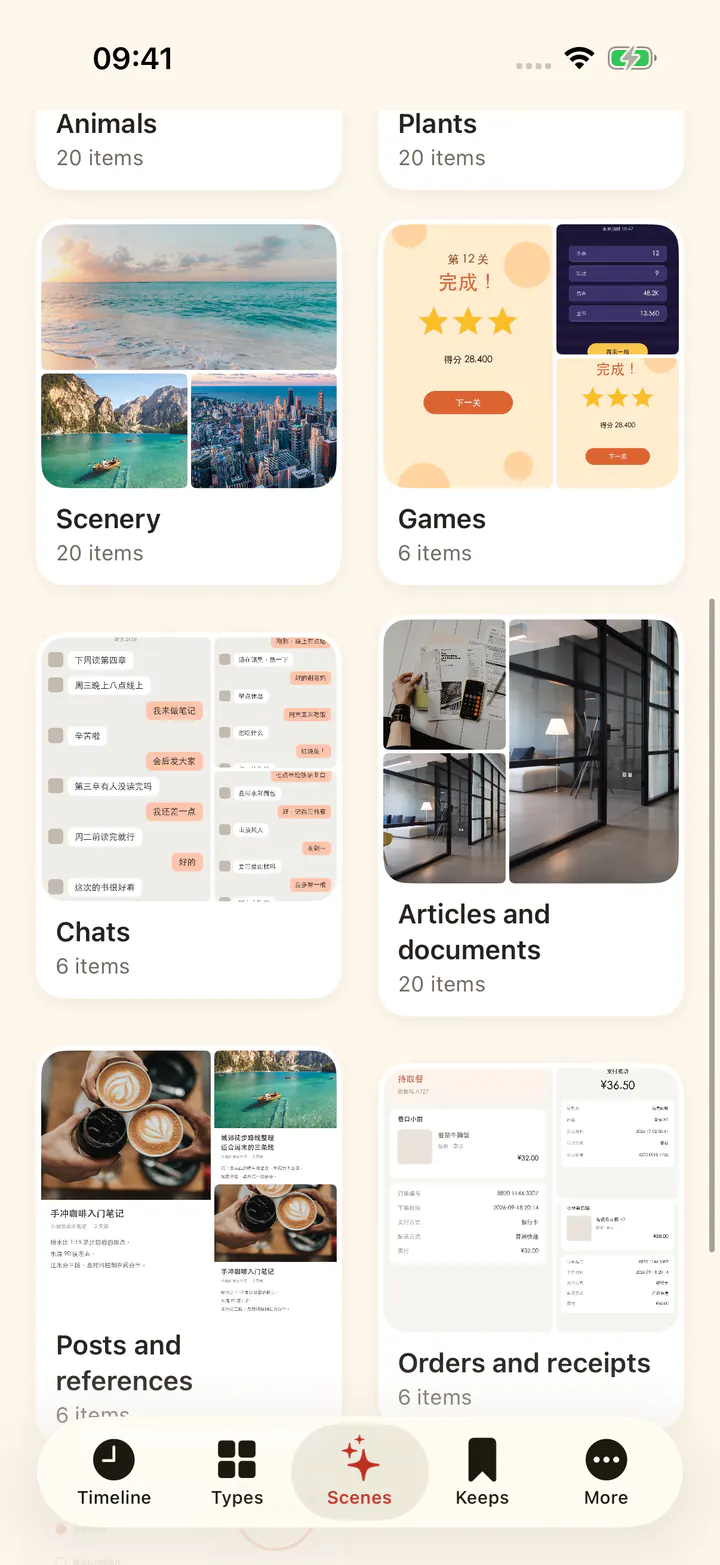
Open Screenshots in Types, or a screenshot scene such as Chats or Orders and receipts in Scenes. Keep the handful that still matter and let the rest move on.
- 4
Send the rest to the Review Bin
Cleared screenshots wait in the Review Bin instead of being deleted immediately, so an important one is never gone by accident.
- 5
Confirm, then empty Recently Deleted
Complete deletion through iOS. Screenshots then sit in Recently Deleted for about 30 days before permanent removal.
Delete screenshots by what they show
The hard part of clearing screenshots is not selecting them. It is the one boarding pass or order number hidden among hundreds of chat captures and game scores. KeepFirst’s Scenes tab sorts screenshots by purpose, so you can clear a whole pile of chats or game screens in one pass and give receipts a slower look.
Recognition starts only when you turn it on, runs on your iPhone, and can be paused. KeepFirst reads text in screenshots on the device to place them, but does not store that text or send it anywhere. A screenshot can still land in the wrong group, which is why nothing is deleted until you review it.
Frequently asked questions
- Where are my screenshots on iPhone?
- In Photos, tap the Sort and Filter button and choose Media Types, then Screenshots. iOS tags screenshots automatically, so they are easy to separate from camera photos. On older iOS versions they are in Albums under Media Types.
- How do I delete all my screenshots at once?
- Filter the library to Screenshots, tap Select, and drag your finger across the rows to select many at once, then tap the trash button. Skim for receipts, tickets, and confirmations first. In KeepFirst, the ones you do not keep wait in a Review Bin in case you missed one.
- Can I delete chat screenshots but keep receipts?
- Photos treats every screenshot the same. KeepFirst’s optional Scenes tab splits screenshots into chats, games, posts and references, orders and receipts, and apps and tools on your iPhone, so you can clear one kind and keep another.
- Do screenshots take up a lot of storage?
- Each screenshot is small, but they accumulate quickly. Clearing old ones is one of the easiest ways to free up a bit of space fast.
- Will deleting screenshots delete my other photos?
- No. Only the items you select are affected. Filtering the library to Screenshots keeps the cleanup limited to screenshots.
- Is it safe to delete screenshots on iPhone?
- Yes, once you have kept the few with information you still need. And with the Review Bin plus Recently Deleted, there is still a window to recover a mistake.
Clear the clutter, keep the useful ones
Review screenshots by type, keep what you need, and let the Review Bin catch the rest.