
How to sort photos on iPhone by date taken or size
To sort photos by date taken on iPhone, open Photos, tap the Sort and Filter button, and choose Captured. Choose Added instead to see photos in the order they arrived on the phone. The Photos app cannot sort by file size: for the biggest files, open Settings, then General, then iPhone Storage, and start with long videos.
What you can and cannot sort
Most “how do I sort my camera roll” searches are really two jobs: put photos back in the order they were taken, or find the files eating storage. Photos handles the first one well and the second one not at all.
| Job | What Photos can do | What to use instead |
|---|---|---|
| Sort by date taken | Built in. Sort and Filter → Captured. | Years / Months / Days to jump to a period. |
| Sort by date added | Built in. Sort and Filter → Added. | Useful for finding recent saves and imports. |
| Sort by file size | Not available. There is no size sort. | Settings → General → iPhone Storage → Photos. |
| Sort by type | Sort and Filter → Media Types: photos, videos, screenshots. | KeepFirst Types for the same groups, then keep-first review. |
| Sort similar bursts | No near-duplicate grouping. Duplicates is exact copies only. | Merge exact copies in Photos, then review similar shots. |
Sort, then review — step by step
- 1
Sort the library by date taken
Open Photos and go to the library. Tap the Sort and Filter button, then choose Captured to order photos by the date they were taken, or Added to order them by the date they arrived in your library.
- 2
Filter to one media type
In the same menu, use Media Types to show only photos, videos, or screenshots. Filters stack, so you can look at one kind of item in date-taken order. Tap Remove Filters to see everything again.
- 3
Find large files in iPhone Storage
Photos cannot sort by file size. Open Settings, then General, then iPhone Storage, and tap Photos. Long videos are usually the largest items, so start there if the goal is space.
- 4
Group similar shots, then choose keepers
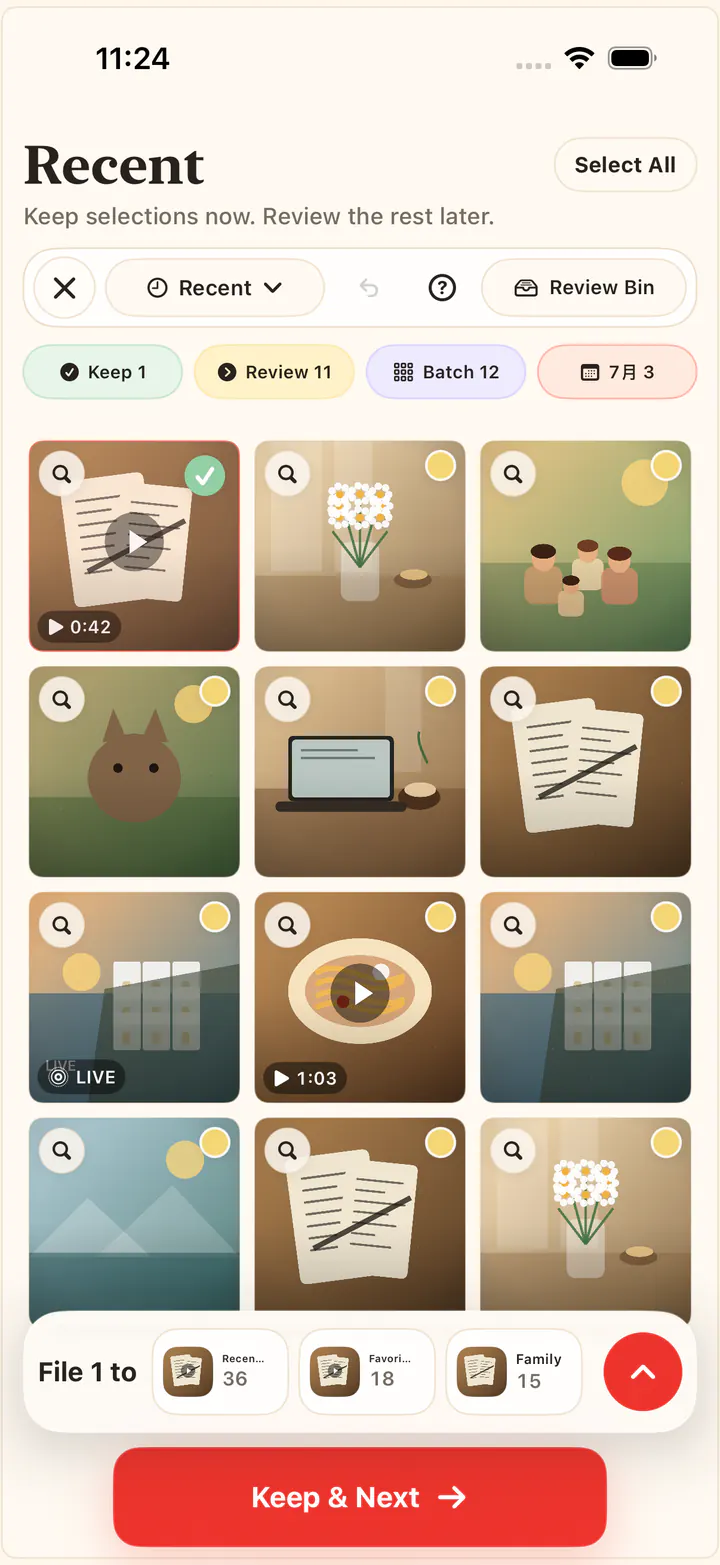
Bursts and retakes are the next easy win. In KeepFirst, review local similar-photo groups, keep the best shot, and send the rest to the Review Bin.
- 5
Confirm deletion when you are ready
Check the Review Bin, then confirm through the standard iOS prompt. Deleted items still use storage until you empty Recently Deleted.
Sort by date taken vs. date added
Photos has two date orders. Captured uses the date each photo or video was taken. Added uses the date it landed in your library, with the newest additions at the bottom. If old photos you saved from Messages or AirDrop keep showing up next to today’s pictures, the library is sorted by Added.
- 1
Open Library in Photos
Open Photos and tap Library to see the full photo grid.
- 2
Tap the Sort and Filter button
The sort options sit at the top of the list: Added and Captured. Filters such as Media Types and Edited are listed below them.
- 3
Choose Captured
The library reorders by date taken. Use Years, Months, or Days to jump to a period. For cleanup, oldest-first is usually calmer: old event bursts and forgotten screenshots are easier to judge than last week’s photos.
Button and option names follow Apple’s iPhone User Guide for iOS 27. Some earlier versions label the same two options Recently Added and Date Captured.
Find large photos and videos by size
If your search was “iPhone sort photos by size,” the honest answer is that Photos will not do it. File size is a storage question, so iOS answers it in Settings.
- 1
Open iPhone Storage
Go to Settings → General → iPhone Storage. Wait for the list to finish calculating if the Photos row still says Loading.
- 2
Tap Photos
This shows how much the photo library is using on this device. If iCloud Photos is on with Optimize iPhone Storage, the on-device number can look smaller than the full library in iCloud.
- 3
Review videos first
A few long 4K clips often outweigh hundreds of stills. In Photos, filter to Media Types → Videos and work through the longest clips first. Then check Live Photos and screen recordings.
Deleting a video still leaves it in Recently Deleted for about 30 days, and it still counts toward storage until you empty that album. Details are on free up photo storage on iPhone.
Frequently asked questions
- How do I sort photos by date taken on iPhone?
- Open Photos, tap the Sort and Filter button, and choose Captured. Photos and videos are then ordered by the date they were taken instead of the date they were added. Choose Added to switch back.
- Why are my iPhone photos not in date order?
- The library is probably sorted by Added. Saved images, AirDrops, and imports from another phone are placed by the day they arrived, not the day they were taken. Switch the sort to Captured. If a single photo is still out of place, its date was set by the device or app that created it; swipe up on the photo and tap Adjust to fix the date.
- Can you sort iPhone photos by size?
- No. The Photos app does not sort the library by file size. To find large items, open Settings, then General, then iPhone Storage, tap Photos, and review long videos first. Filtering Photos to Videos with Media Types is the fastest way to see the heaviest items.
- How do I see only screenshots or videos?
- Tap the Sort and Filter button in Photos and choose Media Types, then Screenshots or Videos. You can combine that filter with the Captured sort. KeepFirst groups the same types, plus screen recordings and Live Photos, for keep-first review.
- Does sorting photos delete anything?
- No. Sorting and filtering only change the order you see. Deletion is a separate step. In KeepFirst, unselected photos wait in the Review Bin first, and iOS still asks you to confirm.
Sort into a safer cleanup
Use date and storage to pick the pile. Then keep the best shots and clear the rest with the Review Bin as a safety net.