
How to delete photos from iPhone safely
Deleting photos is safest when you slow down two things: how many you remove at once, and how final it feels. Work in small batches, understand that iCloud Photos syncs deletions across your devices, and review before you confirm. KeepFirst adds a keep-first step and a Review Bin so cleanup is deliberate, and Recently Deleted gives you about 30 days to undo a mistake.
Delete safely, step by step
- 1
Delete in small batches
Clearing a few sets at a time is safer than a single mass delete, and it is easier to notice if something important is in the pile.
- 2
Know how iCloud Photos behaves
If iCloud Photos is on, deleting a photo on your iPhone removes it from every device signed in to the same account. If you want to keep copies, back them up first.
- 3
Review before you delete
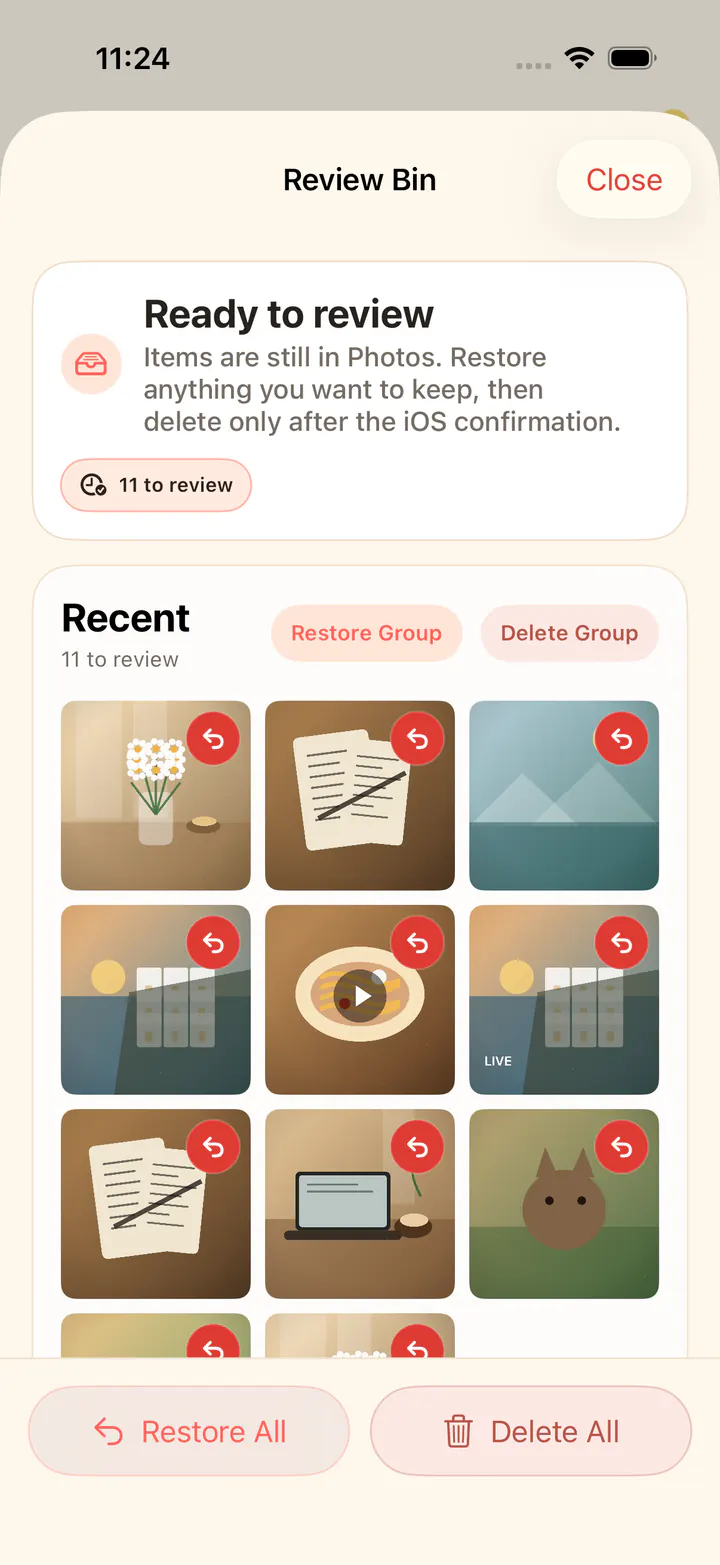
In KeepFirst, choose the photos you want to keep and send the rest to the Review Bin, so deletion is a deliberate second step.
- 4
Use Recently Deleted as a safety net
After you confirm, iOS keeps photos in Recently Deleted for about 30 days. That window is your chance to undo a mistake.
- 5
Empty Recently Deleted only when sure
Deleted photos still count toward storage until Recently Deleted is emptied. Clear it once you are confident nothing was a mistake.
Frequently asked questions
- How do I delete a lot of photos on iPhone without losing the wrong ones?
- Work in small batches and review first. KeepFirst has you choose keepers and moves the rest to a Review Bin, so a big cleanup does not turn into an accidental loss.
- If I delete photos on my iPhone, are they deleted from iCloud?
- If iCloud Photos is turned on, yes. Deleting on one device removes the photo from all devices on the same account. Back up anything you want to keep before deleting.
- Can I recover photos I deleted from my iPhone?
- Usually yes, for a limited time. Deleted photos go to Recently Deleted and stay for about 30 days before permanent removal.
- Why won’t my photos delete, or why is storage still full?
- Deleted photos sit in Recently Deleted and keep counting toward storage until you empty it. Open the Photos app, go to Recently Deleted, and clear it to reclaim space.
- Does KeepFirst delete my photos for me?
- No. KeepFirst prepares the cleanup by letting you choose keepers and holding the rest in a Review Bin. The final deletion is always confirmed by you through iOS.
Delete with a second look
Choose keepers first, review the rest, and let Recently Deleted be your backstop.