
How to organize photos on iPhone by time, type, and private Keeps
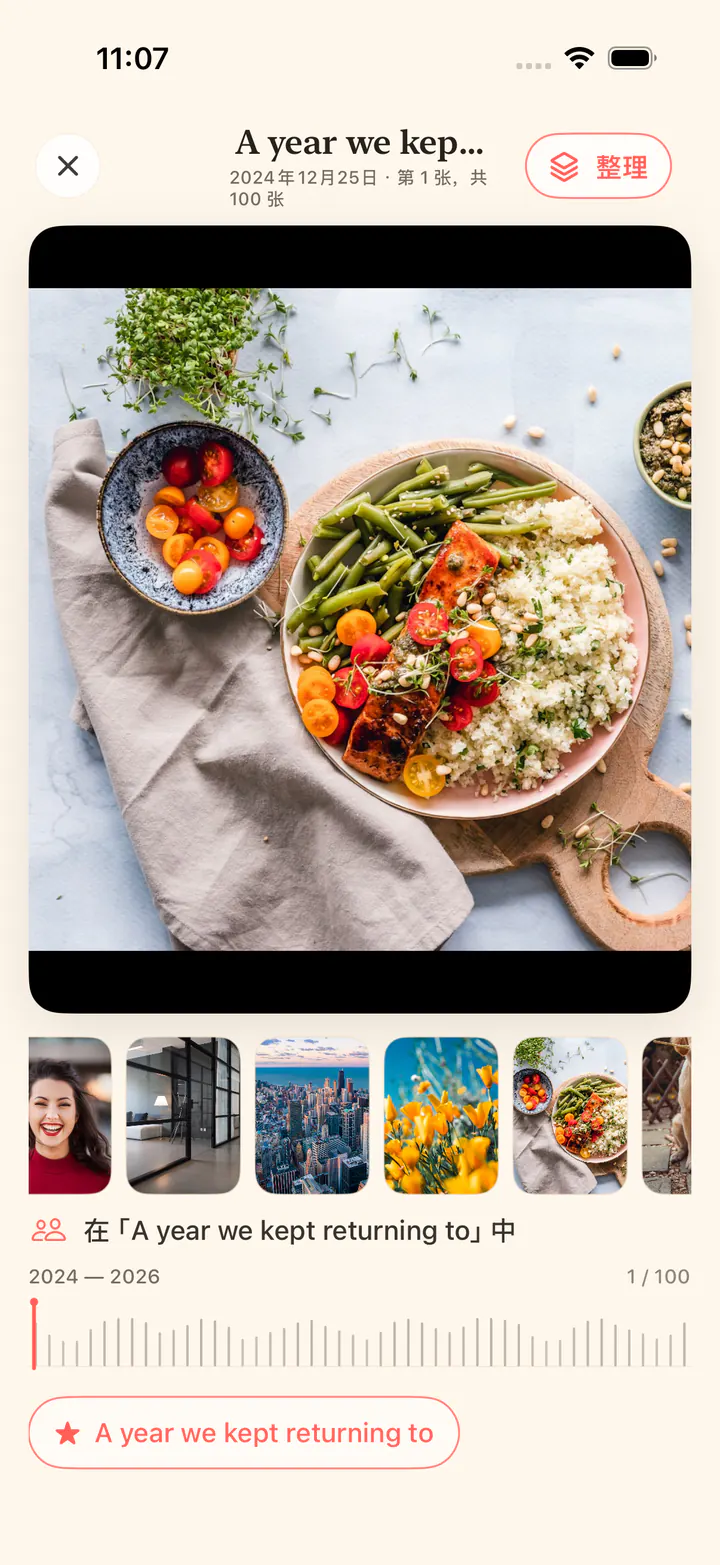
Organizing an iPhone library is easier when you start with one question: what should stay? Work through your photos by time and by type, then give the ones that matter private names you can return to. KeepFirst builds the whole flow around that idea — mark what you keep, revisit it through private Keeps, and let the rest wait in a Review Bin before anything is deleted.
Organize, step by step
- 1
Organize by time
Work through your library by moments and dates. Older batches are usually where the easiest decisions and the biggest clutter live.
- 2
Organize by type
Group by kind — screenshots, videos, and similar shots. Reviewing one type at a time is faster than scrolling everything.
- 3
Name private Keeps in your own words
Give keepers locally stored names that mean something to you. One photo can belong to several Keeps without being moved or duplicated in Apple Photos.
- 4
Review with a keep-first pass
In KeepFirst, mark the photos worth keeping and send the rest to the Review Bin, so organizing naturally clears clutter.
- 5
Confirm any cleanup
Check the Review Bin and complete deletion through the standard iOS prompt when you are ready.
Frequently asked questions
- What is the best way to organize photos on iPhone?
- Work by time and type, make “keep” your first decision, then name private Keeps for the photos that matter. KeepFirst moves anything you do not keep to a Review Bin.
- Does KeepFirst create or change Apple Photos albums?
- No. Private Keeps are local organization inside KeepFirst. They do not add, move, or remove items in Apple Photos albums, and one photo can belong to several Keeps.
- How do I organize a huge photo library?
- In small batches. Pick one moment or one type at a time so the task stays manageable, and review each batch before deleting anything.
- Does organizing photos mean deleting them?
- No. Organizing and deleting are separate. You can group and file photos without removing anything, and any cleanup goes through the Review Bin and an iOS confirmation.
- How do I organize photos by type on iPhone?
- The Photos app groups media in the Media Types section, and KeepFirst lets you review by kind — screenshots, similar shots, and more — so you can decide type by type.
Organize around what matters
Keep the photos worth keeping, name them in your own words, and let the Review Bin handle the rest.