
iPhone storage full and can't delete photos? Start here
If your iPhone says storage is full but deleting photos does nothing, the space is usually not gone — it is parked in Recently Deleted, held by iCloud sync, or dominated by a few large videos. Work through the five steps below: free what is already deleted, check what iCloud is doing, clear the biggest items, then clean the rest in small batches where every photo gets a review before it goes.
Get space back, step by step
Steps 1 to 3 use only what is already on your iPhone. Steps 4 and 5 are the safer way to keep going once the obvious space is back.
- 1
Empty Recently Deleted first
Deleted photos stay in Collections, then Utilities, then Recently Deleted for about 30 days and still count against storage. Open the album, review it once, and tap Delete All. For many people this alone frees several gigabytes.
- 2
Check whether iCloud is holding space
In Settings, tap your name, then iCloud, then Photos. If iCloud Photos is on, deleting a photo removes it everywhere, and "Optimize iPhone Storage" only shrinks local copies after enough originals are in iCloud. A paused sync or a full iCloud plan can also block changes.
- 3
Clear the few biggest items
In Photos, tap Sort and Filter, then Media Types, then Videos. A handful of long videos often outweighs thousands of photos. Settings, then General, then iPhone Storage, then Photos shows what the library actually uses.
- 4
Work in small keep-first batches
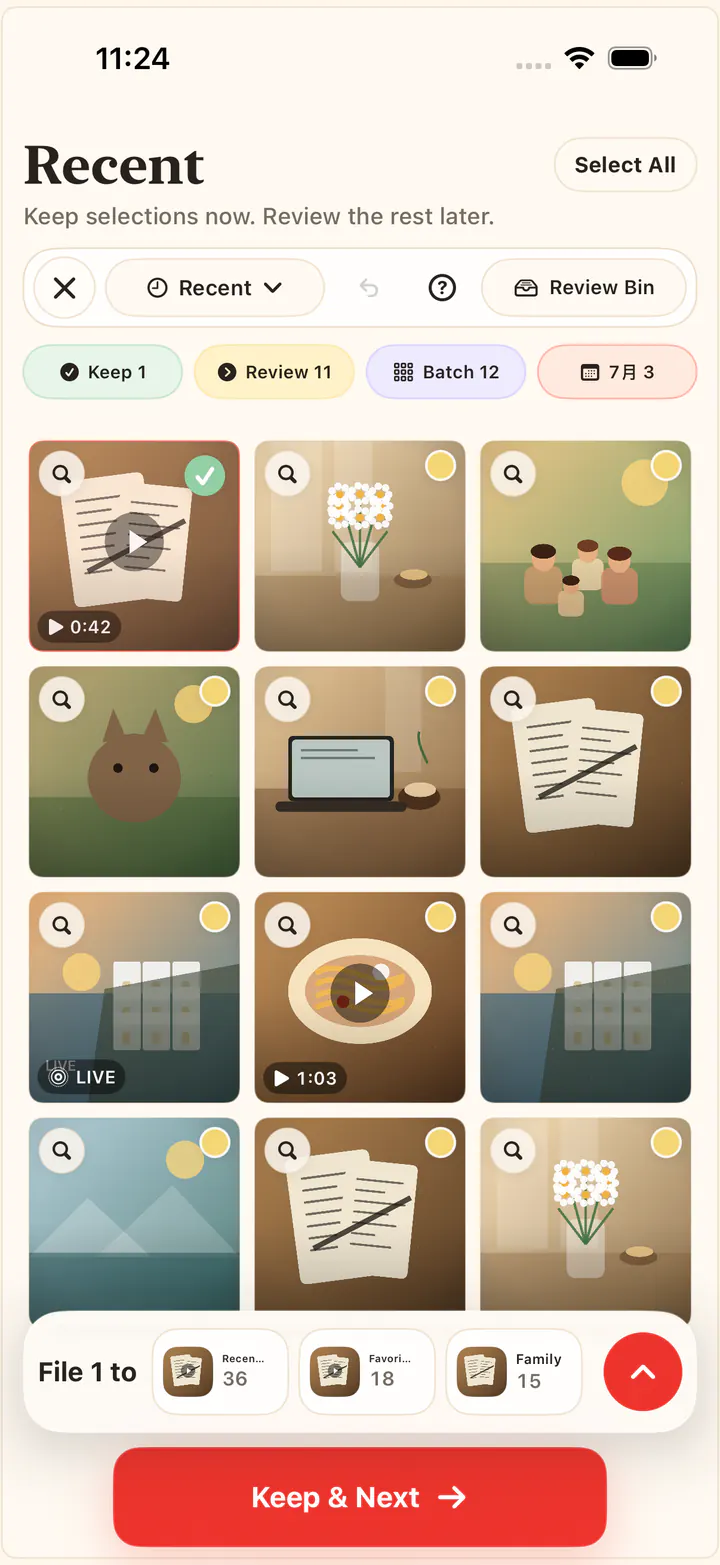
Deleting under pressure is when the wrong photo goes. In KeepFirst, open one time period, type, or scene and tap only the photos worth keeping. The unselected ones move to an in-app Review Bin instead of being deleted immediately.
- 5
Review the bin, then confirm
Open the Review Bin, restore anything you want back, and delete the rest. Real deletion still requires the standard iOS confirmation, so nothing is final until you say so twice.
Why deleting "does nothing"
| What you did | Why storage did not drop | What to do |
|---|---|---|
| Deleted photos normally | They moved to Recently Deleted and still count for ~30 days. | Empty Recently Deleted once you have checked it. |
| Deleted with iCloud Photos on | The delete synced everywhere; local copies may stay optimized only after sync catches up. | Check iCloud Photos status; let sync finish on Wi-Fi and power. |
| Deleted lots of small photos | Photos are small; a few 4K videos can outweigh thousands of them. | Clear Videos and large files via Media Types first. |
| Nothing seems to delete | Sync paused, shared-library limits, or restrictions block the action. | Check iCloud status, shared albums, and Screen Time / MDM settings. |
For the bigger picture, see free up photo storage on iPhone and clean up iPhone photos.
When storage is full, keep first instead of rushing
A full phone pushes people into delete-first mode, and that is when irreplaceable photos get lost. The calmer version flips the decision: in KeepFirst you open one small set, tap the photos worth keeping, and everything you did not choose moves to an in-app Review Bin. Nothing leaves your library until you check the bin and confirm the iOS prompt — and photos are reviewed on your iPhone, never uploaded.
Frequently asked questions
- Why is my iPhone storage still full after deleting photos?
- The most common reason is Recently Deleted: removed items sit there for about 30 days and still use storage until you empty the album. Also check that "Optimize iPhone Storage" has finished replacing originals and that iCloud sync is not paused.
- Why can't I delete photos on my iPhone?
- If the delete option is missing or fails, check three things: iCloud Photos sync status (deletions sync to every device), whether the photos came from a synced computer or shared library you do not control, and screen-time or device-management restrictions.
- Does deleting a photo on iPhone also delete it from iCloud?
- Yes, when iCloud Photos is on, deletion syncs to iCloud and every signed-in device. The photo stays in Recently Deleted for about 30 days unless you empty it. If you need an iCloud-only copy, export or archive it before deleting.
- What is the fastest way to free up photo storage?
- Empty Recently Deleted, then clear videos and screenshots with the Media Types filter. That reclaims most space without reviewing thousands of photos one by one.
- Will KeepFirst delete photos I want to keep?
- No. You choose the keepers in each batch, and the unselected photos move to the in-app Review Bin. Final deletion is a separate manual step that also goes through the iOS confirmation.
Clear space without the panic
KeepFirst keeps your best shots safe while you free up storage: choose keepers first, review the rest, then delete with confidence.